Alternatives — app and client migration
Alternative to a Hikvision App: Moving the Client, Not the Cameras
The app is where a migration is felt, even when all the hardware underneath is finished and working: your team opens it every morning, and it decides how remote access is reached, who has an account and what happens when someone needs a clip at midnight. This page covers what actually moves, what stays behind, and how to plan the changeover so the site is never blind. We publish our own specifications and pricing; we do not publish claims about other manufacturers’ products that we cannot document.
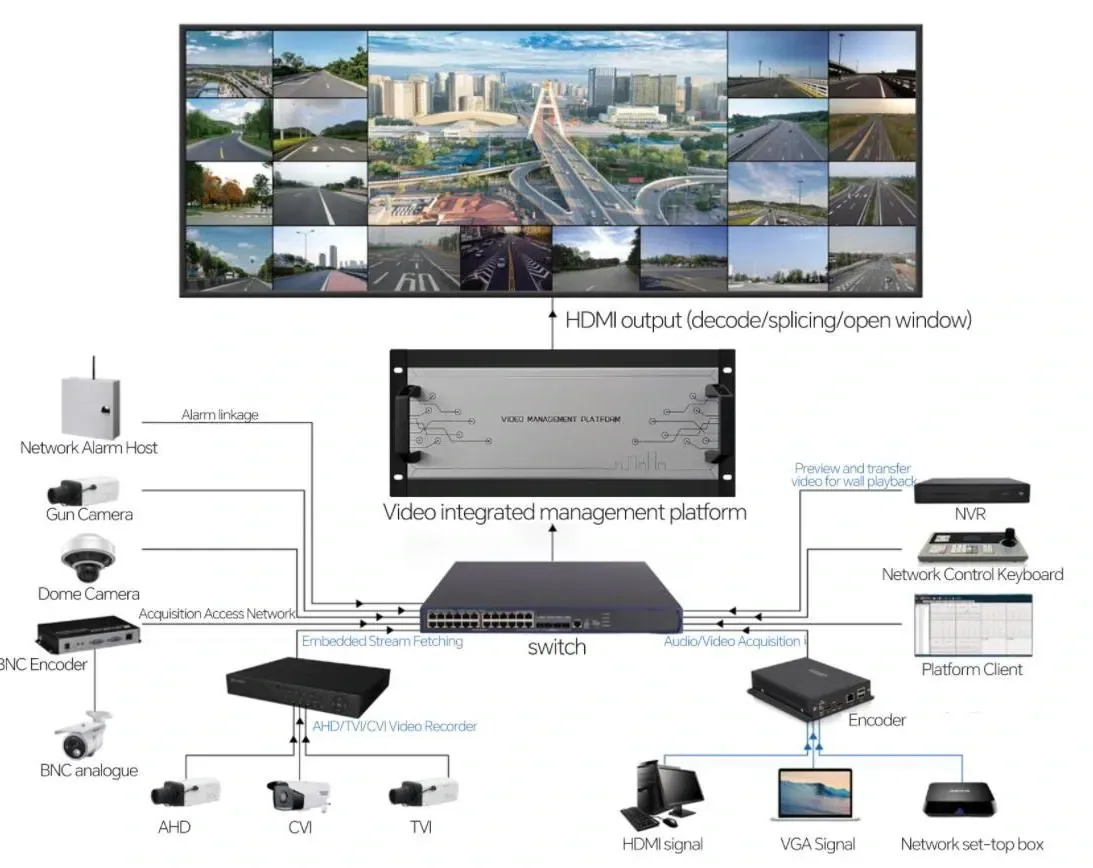
- Seetong Cloud clients on iOS, Android and Windows
- P2P and one-click NAT traversal — no fixed IP, no port forwarding
- Cameras onboard over ONVIF, RTSP and GB28181
- Up to 38 local user accounts on the recorder
What the client is actually holding together
An app looks like a grid of cameras, but it is really three things stacked on top of each other: the account that lists the devices, the route by which remote access reaches them, and the user model that decides who can see what. Change the app and all three change, which is why an app migration deserves more planning than its size suggests.
The route is the part people underestimate. Remote access is reached in one of three ways: peer-to-peer with NAT traversal, which needs no fixed IP address and no router configuration; port forwarding, which needs a static address and a deliberate hole in the firewall; and local access on the same network. Our platform uses P2P with one-click NAT traversal, which is the simplest of the three for a site with an ordinary internet connection, and it keeps working when the ISP changes your address overnight.
Three client platforms, one account
Seetong Cloud clients run on iOS, Android and Windows, so the same account covers the guard on a phone, the supervisor on a tablet and the control room on a desktop. Live view and recorded playback are the two functions that matter most day to day, and both come off the recorder rather than the individual cameras, which is why the client and the recorder move together.
Mobile viewing also depends on what the camera sends. Each camera runs a main stream at 500–8000 kbps and a sub-stream at 50–2000 kbps, and a phone client normally displays the sub-stream — smaller, cheaper on data and perfectly adequate on a 6-inch screen. The full-resolution main stream is what you review in the control room and export when something matters. Checking that both are configured deliberately, rather than left on defaults, is one of the small jobs that makes the difference between a system people trust and one they complain about.
What is lost when the client changes
Being straight about this is more useful than a feature list, so here is what does not survive a platform change:
- The account and its history. Device lists, saved layouts, alert rules, share settings and notification preferences are configured fresh. Bring a written inventory of what exists before you start, or you will rebuild it from memory.
- Cloud clips and alert history held inside the old platform. Anything you may need later should be exported while both systems are still running.
- Whatever smart analysis is native to the old app. The features that live in the client rather than the camera do not travel; our recorder offers face, plate, humanoid, vehicle and falling-object detection on the configured channels, and that is the ceiling of what any client migration can promise.
- A single login for the whole estate, if some devices stay on the old platform. Two systems mean two accounts, unless you move the recorder as well as the client.
- Configuring cameras from the phone. If you relied on the old app to change camera settings, do that work before the switch — and write the passwords down. After the change, camera settings are reached from the camera interface rather than the client.
One branding limit worth knowing early: logo placement covers the outer carton, the device case, the channel display page and the boot screen, but the client application itself is supplied by the platform and cannot be re-branded.
Changing the client without changing the cameras
This is the route most sites take, and it works the same way as any recorder-led migration: the cameras stay on the wall, and the new recorder pulls their streams over the network. Each camera publishes a standard RTSP path and is discovered over ONVIF, so it appears as a channel on the new recorder and, from there, in the new client. Nothing about the lenses, the mounts, the PoE switching or the cable runs has to change.
The two things to prepare are addresses and credentials. Give each camera a fixed address rather than leaving it to DHCP, and collect the username and password for every device in one place before the changeover. Both jobs take an hour and save a very uncomfortable evening. Once the cameras are onboarded, the recorder’s user list is set up — up to 38 local accounts — and the working habits move over one person at a time, starting with whoever is on shift the night the system changes.
One note on naming
The client for this range is called Seetong Cloud. We treat it as what it is: the compatibility layer that sits between your cameras, your recorder and your phone. It is not a brand we market, and it does not appear on this site as a brand page. What matters commercially is narrower — it registers cameras over ONVIF, RTSP and GB28181, it reaches remote devices over P2P with one-click NAT traversal, and it runs on iOS, Android and Windows. Those are the facts to compare against whatever client you are using today.
The changeover, in order
- Inventory the devices, the accounts and the alert rules on the old platform, and note who uses which view and on which device.
- Confirm the remote access route you want: P2P and NAT traversal for simplicity, or port mapping if your policy requires it.
- Collect camera addresses and credentials, and set static addresses on the devices that will be onboarded.
- Onboard a pilot group of four to six cameras and test live view, night image, timestamps and playback end to end.
- Create the user accounts on the recorder in the roles you need, rather than copying everyone into an administrator account.
- Run both clients in parallel through one full retention cycle so nobody is asked to trust a system they have not seen working.
- Turn off the old access last, and keep the old export method documented in case an old clip is needed after the changeover.
Do the switch in a maintenance window, not a Monday morning. A client migration that is planned for a Thursday night is a five-minute conversation on Friday; one that happens during a shift change is a week of complaints.
Three ways to approach a client migration
Client and recorder change, cameras stay
The standard route. Cameras are onboarded to a new recorder over ONVIF, RTSP or GB28181, the new client becomes the daily interface, and the physical installation is untouched.
- Use when
- Sound cameras, an ageing recorder or client, and a team that needs working remote access again without a capital project.
- Not when
- Estates with analogue cameras or models that publish no standard stream — the camera layer has to change first in that case.
Client only, recorder stays
Possible only if the recorder itself supports the client you are moving to or publishes a standard stream to another platform. This is the least disruptive option when it is available, and the one to check first.
- Use when
- Sites whose recorder is current and standards-based, where the complaint is about the app rather than the recording.
- Not when
- Recorders locked to their own client with no standard interface. There the client and the recorder move together or not at all.
Both clients, for a transition period
The old app stays installed and logged in for one full retention cycle while the new one takes over day to day. Nobody is asked to give up access to footage they might need before the new system has earned trust.
- Use when
- Sites with live incidents, ongoing investigations or contractual obligations that make a coverage gap unacceptable.
- Not when
- Sites with strict account policies that prohibit parallel access — there, plan a hard cutover in a maintenance window instead.
Frequently asked questions
What is an alternative to the Hikvision app?
The client that ships with this range is Seetong Cloud, running on iOS, Android and Windows, and the practical comparison is not the app name but the three things it has to do. It has to reach your cameras remotely — ours does it over P2P with one-click NAT traversal, so no fixed IP and no port forwarding are needed. It has to show both live view and recorded playback from the recorder. And it has to support the accounts you need, up to 38 local users on the recorder. Check any app you are considering against those three questions, and check how it handles the cameras you already own, because that is where most migrations either work or do not.
Can I view my existing cameras in a different app?
If they publish a standard ONVIF, RTSP or GB28181 stream, they can be onboarded to a recorder that those clients read, and they will appear in the new app as channels. If they are analogue, or locked to a proprietary protocol with no standard stream, no client change will bring them across without an encoder layer. The reliable test takes ten minutes: try to open a stream from the camera from a laptop on the same network, using the manufacturer’s documented RTSP path. If that works, a standards-based recorder can pull it. If it does not, ask us before you plan the migration.
How does remote access work — do I need a fixed IP or port forwarding?
Our platform reaches remote devices over P2P with one-click NAT traversal. In plain terms, the recorder makes an outbound connection to the platform and the client meets it there, so you do not need a static public IP address and you do not need to open ports in the router. That matters on ordinary business broadband, where the address can change without warning and where an open port is a standing security question. If your IT policy prefers port forwarding or a VPN, the recorder also publishes standard RTSP and supports port-mapped access, so either approach can be made to work — the difference is only in what your network team has to maintain.
Which features stop working after the switch?
Anything that belonged to the old account rather than to the cameras: device lists, saved multi-camera layouts, alert rules, notification settings, share links and cloud clip history. Features that live in the old client’s software — its own smart search or its own analytics — do not travel either. What keeps working is the video itself, because it comes from the cameras over a standard stream, plus the recorder-side detection that our platform offers: face, number plate, humanoid, vehicle and falling-object detection, alongside ordinary motion detection. Plan for a rebuild of the configuration layer rather than a copy of it, and the switch feels like administration instead of a loss.
Can the app be re-branded for our company?
No. Logo placement on this range covers the outer carton, the device case, the channel display page and the boot screen, and those options are available on OEM orders. The client application itself is supplied by the platform and keeps its own name and identity on the app stores, so an OEM project should not promise customers a white-labelled app. If a branded mobile experience is a requirement for your tender rather than a preference, say so at the start so nobody plans around a deliverable that does not exist — and if what you need is your logo on the channel display and the boot screen, that part we can do.
How many people can use the system at once?
The recorder supports up to 38 local user accounts, each with its own credentials, so departments and shifts do not have to share a login. That matters more than it sounds: shared logins make it impossible to say who viewed or exported a clip, and they are the first thing an auditor or an insurer asks about. On the viewing side, plan how many people will stream at the same time and over what connection — a handful of phone clients on sub-streams is a very light load, while several simultaneous desktop sessions on the main stream need real uplink capacity at the site. Tell us the numbers and we will check them against the design.
Do I need to be on site to make the change?
Usually not. The migration is a network job, so it can be done remotely during a maintenance window, provided somebody on site can power-cycle a device if asked and can confirm the cameras are still live afterwards. What has to be arranged in advance is access: the camera credentials, the recorder’s network settings and a maintenance window agreed with whoever uses the system at night. Do not attempt a client migration during a shift change or in the middle of an investigation. Plan it for a quiet hour, keep the old client installed until the new one has run through a full retention cycle, and have a rollback step written down before you start.
Plan the client switch before it happens
Tell us what your team uses today, how many accounts you need and how your site reaches the internet. We will map the migration, confirm which cameras onboard cleanly, and tell you what to export before the old access is switched off.